> For the complete documentation index, see [llms.txt](https://docs.korewireless.com/llms.txt). Markdown versions of documentation pages are available by appending `.md` to page URLs; this page is available as [Markdown](https://docs.korewireless.com/supersim/supersim-first-steps/get-started-with-super-sim-connection-events.md).
# Get Started with Super SIM Connection Events
KORE [Event Streams](https://docs.korewireless.com/en-us/developers/event-streams) is a new, unified mechanism for tracking your application's interactions with KORE products. It spans KORE's product line to provide a common event logging system that consistently supports product-specific event types. You use a single API to subscribe to the events that matter to you.
Super SIM provides a set of event types focused on devices' attempts to attach to cellular networks and, once they are connected, the data sessions they establish to send and receive information.
This tutorial will show you how the Event Streams API works and how you can use it to monitor your Super SIMs. If you've already set up Event Streams for another KORE product, then you may prefer to jump straight to the documentation that [describes the event types unique to Super SIM](https://docs.korewireless.com/en-us/supersim/how-to/how-to-use-super-sim-connection-events). No problem. But if you're keen to try Event Streams for the first time to see how this API might help you monitor your IoT fleet, read on.
{% hint style="info" %}
Event Streams currently supports two destinations for your events: AWS Kinesis and webhooks. For real-world large-scale applications, you'll most likely prefer the scalability and flexibility of AWS Kinesis, but webhooks provide a starting point for smaller apps, API testing, and development, so that's the approach we're taking here.
However, for those of you looking to move to a more sophisticated setup, we have a tutorial that walks you through setting up AWS Kinesis to relay events to [ElasticSearch and using Kibana](https://docs.korewireless.com/en-us/supersim/how-to/how-to-monitor-super-sim-connection-events-using-aws-elasticsearch-and-kibana) as an events monitor dashboard.
{% endhint %}
This tutorial assumes you're on a Linux box or a Mac, but it should work under Windows. We'll note Windows-specific points as we come to them. Whatever platform you're using, we'll take it as a given that you have Python 3 installed and are familiar with the basics of the language. Likewise, using the command line on your preferred platform.
OK. Let's get started.
***
## 1. Turn your Super SIM-enabled device OFF
***
## 2. Set up your system
The first thing to do is gather the software you will need to complete the tutorial. You'll be using a specific setup to trial Event Streams with Super SIM and while this may not mirror the tools you'd use in a real-world application, it will give you a clear picture of how the system works.
1. Install and set up `curl` tool: depending on your operating system, this [guide ](https://curl.se/docs/install.html)will show you how to install it.
2. Install the Python tools Falcon and Gunicorn:
```
pip3 install falcon gunicorn
```
3. If you're using Windows but not running the [Windows Subsystem for Linux](https://docs.microsoft.com/en-us/windows/wsl/install-win10), omit `gunicorn` and install `waitress` instead.
4. [Download](https://ngrok.com/download) Ngrok then install it by unzipping the download file and moving the `ngrok` binary to your current working directory. Ngrok is free to use but it [requires you to set up an account](https://dashboard.ngrok.com/) in order to get a token to authorize its usage. Go and [sign up](https://dashboard.ngrok.com/) now.
5. Go to the [Ngrok dashboard and copy your AuthToken](https://dashboard.ngrok.com/get-started/your-authtoken).
6. Hop back to your terminal and configure `ngrok` replacing the placeholder text with the token you copied in the previous step.
```bash
ngrok config add-authtoken
```
***
## 3. Set up and run your events receiver
With the tools in place, you need to establish a server on your machine that will receive Super SIM events streamed from KORE. This is what Falcon and Gunicorn are for. Falcon is an app server and it operates via a basic web server — Gunicorn in this case. First, though you need an app to serve, so copy the code below into a text editor then save it in your working directory as `server.py`.
```python
# 'wsgiref' is provided by Gunicorn/Waitress
from wsgiref.simple_server import make_server
import falcon, json
class Event(object):
def on_post(self, req, resp):
# Configure the response to KORE
resp.status = falcon.HTTP_201
resp.body = json.dumps({"success": True})
# Parse the received data and extract some
# of the information it contains
if req.content_length:
data = json.load(req.stream)[0]
sim_data = data["data"]
event_type = sim_data["event_type"]
time_stamp = sim_data["timestamp"]
sim_name = sim_data["sim_unique_name"]
if not len(sim_name):
sim_name = sim_data["sim_sid"]
if not time_stamp in events:
events[time_stamp] = "KORE EVENT " + event_type + " received from SIM " + sim_name
print(events[time_stamp],"at",time_stamp)
# Main entry point
if __name__ == '__main__':
events = {}
app = falcon.App()
eventHandler = Event()
app.add_route('/events', eventHandler)
with make_server('', 8000, app) as httpd:
print('Serving on port 8000...')
httpd.serve_forever()
```
This code uses Falcon to set up an endpoint for `POST` requests at the path `/events`. It then serves the endpoint on port 8000. When a `POST` request is received, it's passed into the function `on_post()`, which configures a status code 201 ('object created') response, and then prints some of the data included in the event so you can view events as they arrive.
Open a terminal on your system, navigate to the file you just saved and run this command:
```
python server.py
```
You'll see the server start and begin listening on port 8000. Remember the port number — you'll need it in the next step.
***
## 4. Serve your events receiver
Your event receiver is only accessible on your own machine. You need to expose it to the Internet so that KORE can reach it too. The most secure and anonymous way to do this is to use Ngrok, which routes over a virtual private network (VPN) to your computer any HTTP requests that are sent to a temporary public URL.
Not only is it secure, but it's also free and you don't even need to set up an account if you're happy running it for a limited period at any one time.
Open up another terminal tab or window, navigate to where you placed the `ngrok` binary you downloaded in [Step 2](#id-2-set-up-your-system), and run this command:
```
ngrok http 8000
```
You'll recognize the port number from Step 3.
`ngrok` will output a bunch of information — make a note of the https forwarding address. It'll be something like `https://0bc7bd985b0f.ngrok.io` and it will be forwarding to `http://localhost:8000` which is your event handler. It will look something like this:
***
## 5. Configure KORE Event Streams
### 1: Create a Destination
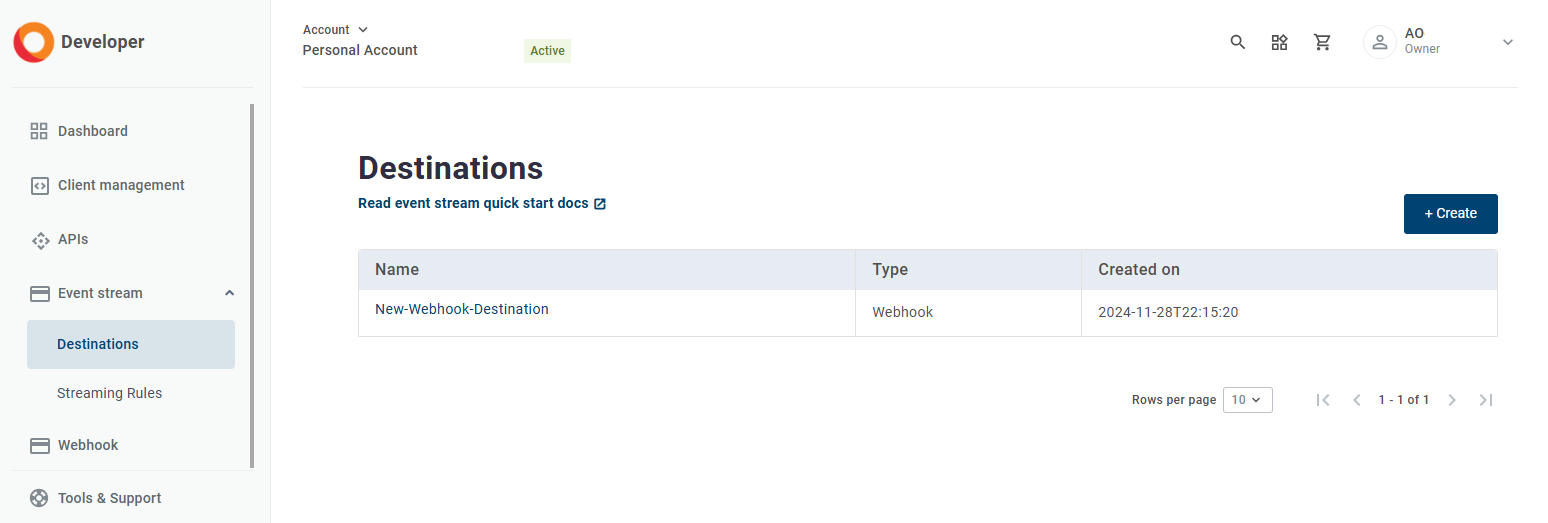
A Destination is an Event Stream destination. To set up a Destination, you create a [Destination](https://docs.korewireless.com/en-us/developers/event-streams/destinations) resource using the [Event Streams](https://build.korewireless.com/event-stream/destination/create) console. Event Streams currently support two Destination types: AWS Kinesis and webhooks. The former requires an AWS account, so we're going to demo Event Streams with a webhook. To be precise, you're going to configure Event Streams to send events to your event handler via Ngrok. A quick guide on how to create a Destination is available through the [Webhook Quick Start](https://docs.korewireless.com/en-us/developers/get-started/event-streams/webhook-quick-start) guide.
You'll need to enter the Ngrok forwarding URL from Step 4. Make sure you don't overwrite the `/events` in the Destination URL field — this is the endpoint defined in your server code in Step 3. You can name your destination according to your preference, in this example, we will use the name "New-Webhook-Destination" as `Destination Name` and "" - same as provided for your in[ Step 4](#id-4-serve-your-events-receiver) - as your the `Destination URL`.
Click Finish. The page should create a Destination which you'll need in the next step.
***
### 2: Create a streaming rule
Event Streams uses a publish-subscribe (aka 'pub-sub') model: you subscribe to the events that interest you, and KORE will publish those events to your Destination.
There are six Super SIM event types, each identified by a reverse domain format string:
| Event Type | ID String |
| -------------------- | --------------------------------------------------------- |
| Attachment Accepted | `com.twilio.iot.supersim.connection.attachment.accepted` |
| Attachment Rejected | `com.twilio.iot.supersim.connection.attachment.rejected` |
| Attachment Failed | `com.twilio.iot.supersim.connection.attachment.failed` |
| Data Session Started | `com.twilio.iot.supersim.connection.data-session.started` |
| Data Session Updated | `com.twilio.iot.supersim.connection.data-session.updated` |
| Data Session Ended | `com.twilio.iot.supersim.connection.data-session.ended` |
The types are largely self-explanatory. The exception is Attachment Failed, which is a generic 'could not connect' error that you may encounter when your device tries to join a cellular network.
In a typical connection sequence, you would expect to receive: one Attachment Accepted, one Data Session Started, and then multiple Data Session Updated events. When your device disconnects, you'll receive a Data Session Ended event at that point.
Now let's set up some [Streaming rules](https://docs.korewireless.com/en-us/developers/event-streams/streaming-rules).
To get events posted to your new Destination, you need to create a [Streaming rule](https://docs.korewireless.com/en-us/developers/event-streams/streaming-rules). This essentially tells KORE what events you're interested in. A quick guide on how to create a Streaming rule is available through the [Webhook Quick Start](https://docs.korewireless.com/en-us/developers/get-started/event-streams/webhook-quick-start) guide.
Select the destination where these events will be delivered. In this example, we've included all but the Data Session Updated event so you don't impact your free event quota.
Click Create. The page should create the Streaming rule that will deliver the events to your destination.
Are you ready? Switch back to the terminal tab running the event handler — it's the first one you opened — and…
***
## 6. Turn your Super SIM-enabled device ON
You'll see a series of events printed to the terminal as your device boots up, tries to connect to the network, does so, and then begins sending and receiving data. For example:
{% hint style="info" %}
If you're running this guide on a Mac, you may see some errors in the output too, in particular `OSError: [Errno 41] Protocol wrong type for socket`. This is nothing to worry about, and you'll soon see the subscribed notifications appear. The errors relate to [longstanding bugs in Python's internals](https://bugs.python.org/issue33450), not to the code you've entered.
{% endhint %}
***
## 7. Tidy up
When you've seen enough, you should cancel this sample Event stream by deleting the Streaming rule and the Destination you created in Step 5. This ensures that KORE doesn't continue to send messages to your events handler, when you're about to shut down.
First, Goto Streaming Rules, select the test rule, delete, and confirm.
Next, delete the Destination as well because it's bound to the Ngrok input URL, which is temporary. Goto Destinations, select the Destination, delete, and confirm.
When done, you can switch to your Ngrok terminal and close the tool down with **Ctrl-c**. Use the same keys to shut down the event handler in the remaining terminal window or tab.
If you restart Ngrok, you'll get a new URL. You can't update an existing Destination with an alternative destination, so you will need to create a new Destination with the new URL — just re-run the code you created in Step 4.
***
## Next steps
You've used the KORE [Build ](https://build.korewireless.com/)page, a pair of Python applications, and Ngrok to receive and display events streamed from KORE in response to actions performed by your Super SIM-connected device. Your computer and the device may only be inches apart on your desk, but you've seen how Event Streams can be used to feed you event data from any of your Super SIM-connected devices anywhere in the world.
As a next step in exploring Super SIM and Event Streams, you might try changing the event handler code to write a log file for all your SIMs, the events they generated, and when. You might also write some code to parse that log and present the results graphically.
We've only displayed a few data points in each event. When you fully harness the power of Super SIM events, you'll be able to get network and cell tower level location information, data usage reports, and [so much more](https://docs.korewireless.com/en-us/supersim/how-to/how-to-use-super-sim-connection-events).
If your want a more sophisticated setup, why not work through our [Connection Events , AWS ElasticSearch, and Kibana tutorial](https://docs.korewireless.com/en-us/supersim/how-to/how-to-monitor-super-sim-connection-events-using-aws-elasticsearch-and-kibana)? You'll set up an AWS Kinesis Destination, use it to relay Super SIM events to ElasticSearch, and then use Kibana as an events monitor dashboard.
We can't wait to see what you build with Super SIM connection events!
---
# Agent Instructions
This documentation is published with GitBook. GitBook is the documentation platform designed so that both humans and AI agents can read, navigate, and reason over technical content effectively. Learn more at gitbook.com.
## Querying This Documentation
If you need additional information that is not directly available in this page, you can query the documentation by asking a question.
Perform an HTTP GET request on the following URL with the `ask` and `goal` query parameters:
```
GET https://docs.korewireless.com/supersim/supersim-first-steps/get-started-with-super-sim-connection-events.md?ask=&goal=
```
`ask` is the immediate question: it should be specific, self-contained, and written in natural language.
`goal` is what the user is ultimately trying to achieve, the reason they need the answer. Sharing it helps GitBook give you a better, more relevant answer. A goal is most helpful when it describes the outcome the user wants rather than restating the question. For example, with `ask=how do I create an API token`, a goal like `automate deployments from our CI pipeline` lets GitBook tailor the answer to that use case.
The response will contain a direct answer to the question and relevant excerpts and sources from the documentation.
Use this mechanism when the answer is not explicitly present in the current page, you need clarification or additional context, or you want to retrieve related documentation sections.