> For the complete documentation index, see [llms.txt](https://docs.korewireless.com/llms.txt). Markdown versions of documentation pages are available by appending `.md` to page URLs; this page is available as [Markdown](https://docs.korewireless.com/supersim/supersim-first-steps/get-started-with-super-sim-sms-commands-and-the-raspberry-pi-4.md).
# Get Started with Super SIM SMS Commands and the Raspberry Pi 4
**SMS Commands** is a Super SIM API that has been designed to allow you to exchange machine-to-machine (M2M) SMS messages with your Super SIM-connected devices. Look forward to further Commands APIs using other transports in future!
This short guide will show you how to set up and sample SMS Commands. Perhaps you'd like to see if it might be a useful addition to your application right now, or you'd like to see how it might be incorporated in the future. If you want to cut to the chase and start developing the feature into your application immediately, [check out the full API documentation and sample code](https://docs.korewireless.com/en-us/api/products/supersim/smscommand-resource).
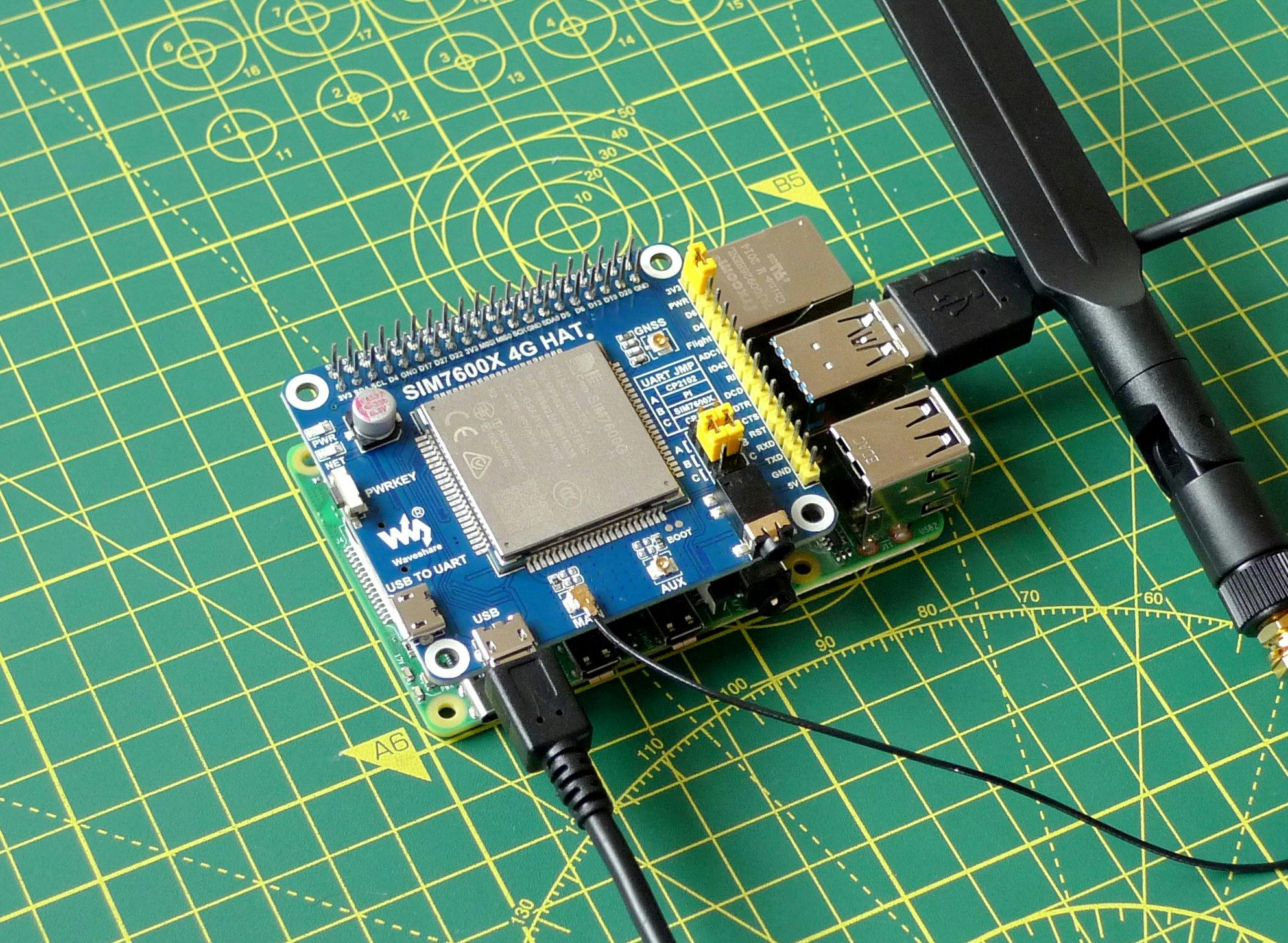
To demonstrate SMS Commands, we'll use a Raspberry Pi 4 Linux computer and a [Waveshare's SIM7600G-H add-on board](https://www.waveshare.com/wiki/SIM7600G-H_4G_HAT), which incorporates a Simcom 7600-G global LTE modem. Please [head over to the Super SIM Quickstart now](https://docs.korewireless.com/en-us/supersim/get-started/get-started-with-super-sim-the-raspberry-pi-4-and-the-waveshare-4g-hat) for a list of the hardware you need and guidance on putting it together. When you've reached Step 4, jump back here and finish the Quickstart later.
{% hint style="info" %}
If you'd like to try SMS Commands with different hardware, we have a tutorial that focuses on the Raspberry Pi Pico, and which also makes use of SMS Commands to send instructions to the device and receive data back. You can [check it out here](https://docs.korewireless.com/en-us/supersim/get-started/get-started-with-super-sim-sms-commands-and-the-raspberry-pi-pico).
{% endhint %}
{% hint style="info" %}
You can also run this tutorial if you're using the [Sixfab 3G-4G/LTE Base Hat](https://docs.korewireless.com/en-us/supersim/get-started/get-started-with-super-sim-the-raspberry-pi-4-and-the-sixfab-base-hat). In this case, you communicate with the Hat's cellular module using `minicom -D /dev/ttyUSB2`.
This tutorial was originally written to make use of the Sixfab Cellular IoT Hat, which has since been EOL'd. If you have a Cellular IoT Hat and would like to use this tutorial, the key change you need to note is in the section on preparing the device for use: you communicate with the Cellular IoT Hat using `minicom -D /dev/ttyUSB3`.
{% endhint %}
You can perform all of the following steps using the Raspberry Pi as both the target device — i.e., the one with the modem — and as a stand-in for your cloud or app. You can also use your main computer as the latter, but using the Pi for both saves moving between machines.
You will first need to install `curl` or your favorite API client on whichever machine you use to send commands to the device.
{% hint style="info" %}
This guide also requires a **configured** Super SIM. If you haven't set up your Super SIM in the [Console](https://supersim.korewireless.com/supersim/sims), please do so now. The [Super SIM First Steps guide](https://docs.korewireless.com/en-us/supersim/get-started/supersim-first-steps) has help if you need it.
{% endhint %}
***
## Send SMS Commands to the device
### 1. Prepare the device
To send or receive messages, first power up the device's cellular module.
1. Check the Waveshare Hat's red **NET** LED — if it's unlit, press the Hat's **PWRKEY** button.
2. By default, the Raspberry Pi will boot to the desktop. If it's one you've used before and set to boot to the command line, just run `startx` to launch the desktop.
3. Select **Accessories > Terminal** from the **Raspberry** menu.
4. You'll use a command-line serial console tool called Minicom to communicate with the Hat's cellular module. If you would prefer to use an alternative tool, such as Screen, that's fine, but it may have a slightly different device-selection procedure than the one outlined here. Install Minicom with these two commands:
```
sudo apt update
sudo apt install minicom -y
```
5. Enter `minicom -D /dev/ttyUSB2` to open a connection to the modem. If Minicom posts an error indicating that `/dev/ttyUSB2` is inaccessible, please [check your Hat setup](https://docs.korewireless.com/en-us/supersim/get-started/get-started-with-super-sim-the-raspberry-pi-4-and-the-waveshare-4g-hat#hardware-setup-the-sim7600g-h-4g-hat) .
6. The SIM7600-G module probably isn't set to echo back what you type in, so you won't be able to see your side of the conversation, so type in `ATE1` and hit **Enter** . You'll get an `OK` back, and when you follow the remaining steps you'll see what you type.
### 2. Send an SMS Command to the device
{% tabs %}
{% tab title="Using the Super SIM Console SMS" %}
Use the ICCID, SIM SID, or unique name to search for your SIM in Super SIM Console. After locating it, load its details to proceed. At the bottom right of your page, you will see the Send M2M Commands card.
Super SIM SIM Details: Send M2M Commands Card
Load the Send SMS Command dialog by clicking the button from Send M2M Commands.
***
Super SIM SMS Command UI
Enter the payload and, optionally, you can add the Callback URL to get a feedback from after the SMS command. If the fleet the SIM is assigned to supports SMS and other validation passes, it will be queued for sending:
***
Super SIM SMS Command Details
As you can see, the message's status is `queued`: it's in KORE's message queue waiting to be sent. When the SMS Command leaves the KORE Mobile Core for the network the device is attached to, its status will become `sent` and then `delivered` when it has been confirmed by the network that the message was delivered. Later on, you'll use a webhook, which you'll set up in the next section, to receive notifications about message status changes as they happen.
{% endtab %}
{% tab title="Using the SMS Commands API endpoint" %}
Sending an SMS Command to the device is just a matter of making a `POST` request to the SMS Commands API endpoint, `https://supersim.api.korewireless.com/v1/SmsCommands`. You need to provide your command, the SID of the [Sim resource](https://docs.korewireless.com/en-us/api/products/supersim/sim-resource) representing the Super SIM it's being sent to, and of course your KORE authorization details.
1. Open a second LX Terminal instance on the Pi, or a terminal on your main machine.
2. Let's say this is the message you want to send to the device:\\
```
{ "command": "wake", "timestamp": "2024-03-08-04-02-49" }
```
It's a command encoded in JSON, though you can use any other textual format and with whatever combination of keys and values that's appropriate for your application. The only restriction is that each Command can contain no more than 160 single-byte characters. You can send this message to your device using `curl` command line tool as follows:
3. Copy and paste the `curl` command to the command line then edit it to fill in the identifier of the Super SIM you're using (you can get this from the [Console](https://supersim.korewireless.com/supersim/sims) if you don't have it handy), and your account credentials (also available from the [Console](https://build.korewireless.com/clients), or for more guided instruction on the [KORE API](https://docs.korewireless.com/en-us/developers/get-started/apis)). The message is `` data specified as your `Payload` parameter.
The response, posted to the terminal by `curl`, will be something like this:
{% code overflow="wrap" %}
```json
{
"account_sid": "ACaaaaaaaaaaaaaaaaaaaaaaaaaaaaaaaa",
"sid": "HCaaaaaaaaaaaaaaaaaaaaaaaaaaaaaaaa",
"payload": "{\"command\":\"wake up\",\"timestamp\":\"2024-03-08-14-02-49}\"",
"sim_sid": "HSaaaaaaaaaaaaaaaaaaaaaaaaaaaaaaaa",
"direction": "to_sim",
"status": "queued",
"date_created": "2024-03-08T14:28:19Z",
"date_updated": "2024-03-08T14:28:19Z",
"url": "https://supersim.api.korewireless.com/v1/SmsCommands/HCaaaaaaaaaaaaaaaaaaaaaaaaaaaaaaaa"
}
```
{% endcode %}
{% endtab %}
{% endtabs %}
You know your test device is connected to the cellular network, but a device in the field might not yet have connected when the message request was sent. If it's a mobile device, it might have briefly passed out of cellular range. Consequently, KORE will continue to attempt to send each new SMS Command for a period of up to 24 hours. If sending fails, the Command will remain in the queue. After 24 hours, it will be sent again, marked as `failed` and removed from the queue.
### 3. Read the SMS Command on the device
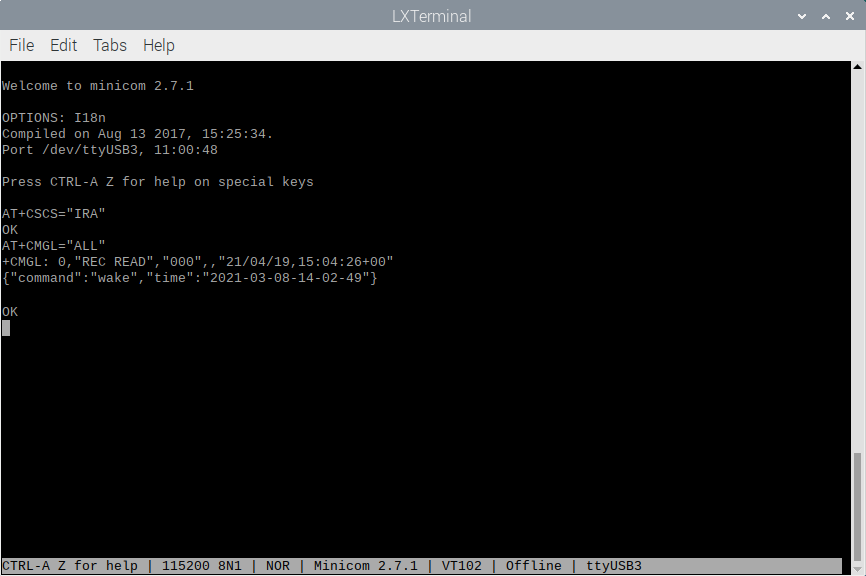
The message you just sent will probably already have arrived on the device, but you can check with an AT command sent to the cellular module. In the terminal running Minicom, enter `AT+CSCS="IRA"` and hit **Enter**. This tells the module to display characters in the International Reference Alphabet (IRA). We need this to view the braces in the JSON as they are not part of the standard GSM character set, which is the module's default.
Now enter `AT+CMGF=1` to set the 7600G's input mode to text, and then enter `AT+CMGL="ALL"` to list all of the SMS messages held on the device. Among them — or possibly the only one — you should see something like:
```
+CMGL: 0,"REC UNREAD","000",,
"21/04/19,15:04:26+00","{"command":"wake","time":"2021-04-19-15-03-49"}"
```
The first value after the command name (`+CMGL:`) is `0` here, but it might be a different number if your Super SIM has received other SMS messages before. This is this message's index in the cellular module's message store, and you can use it to read the specific message using it with this command:
```
AT+CMGR=
```
Of course, a real-world application would handle these AT commands itself by talking directly to the cellular module. It would also parse the command embedded in the message and then perform the required action.
If you're wondering what the `"000"` in the third parameter of the message listed above is, it's KORE's SMS Commands number. All SMS Commands your devices receive will have come from this number, which you'll now use to send a message back from the device.
***
## Receive an SMS Command from the device
The SMS Commands API provides a specific phone number, `000`, to which all SMS messages, from every device are sent. KORE relays the ones it has received from your SIMs on to you. How does it know exactly where to send them? You specify a webhook address.
Super SIMs are organized into Fleets: groups of SIMs that have common settings, such as which networks they are able to connect to and whether they can make use of cellular data services. Fleets are represented in the Super SIM API by [Fleet resources](https://docs.korewireless.com/en-us/api/products/supersim/fleet-resource), and SMS Commands adds properties to each Fleet resource in which you can store your SMS Commands webhook address and, optionally, the HTTP method it uses.
So before you can send a message from the device, you need to set up a webhook target URL and add it to your Super SIM's Fleet.
### 1. Set up a webhook target
[Beeceptor](https://beeceptor.com/) is a handy service for testing webhooks. It's designed for developing and testing APIs of your own and offers free mock servers — virtual endpoints that can receive webhook calls. Let's set one up to receive messages from the device.
1. In a web browser tab, go to [Beeceptor](https://beeceptor.com/) .
2. Enter an endpoint name in the large text field and click **Create Endpoint** :
3. On the screen that appears next, click on the upper of the two clipboard icons to copy the endpoint URL:
4. Keep the tab open.
### 2. Update your Super SIM's Fleet
Now you update your Super SIM's Fleet to add an SMS Commands webhook. You can [do this with the API](https://docs.korewireless.com/en-us/api/products/supersim/fleet-resource), but we'll use the Console for this demo.
1. Open a second web browser tab and log into the KORE [Console](https://console.korewireless.com) .
2. Click the Super SIM tile and then go to [**Fleets**](https://supersim.korewireless.com/supersim/fleets) and select the Fleet containing the Super SIM you are using.
3. Scroll down to **SMS Commands Callback URL** and paste in your webhook URL from the previous section. By default, webhooks are triggered with a `POST` request. Leave it unchanged for now, but if you need to use another method for your own application, you can change it later:
4. Click **Save** .
5. Close the tab if you like.
### 3. Send an SMS Command from the device
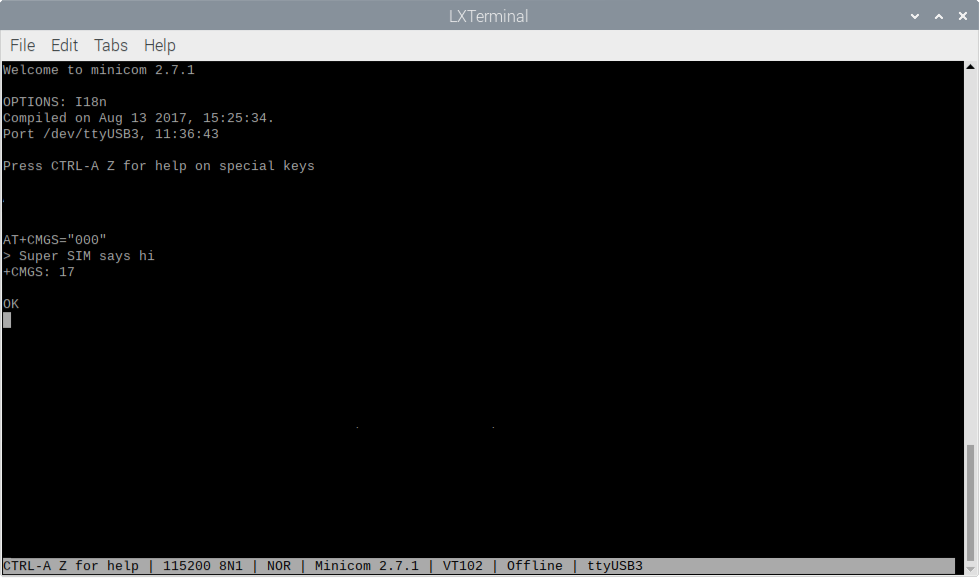
1. In the LX Terminal instance running Minicom — the one you're using to talk to the 7600G — enter the following command: `AT+CMGS="000"`\
This tells the module to read in what you're going to type in next and then send it as an SMS message to the number `000` .
2. Minicom will now display a `>` prompt to show you that the 7600G is awaiting some text. Key in a Command — `Super SIM says hi`, for example — and then hold down the **ctrl** key and hit **Z** . The 7600G will attempt to send the Command, and you'll see a readout of the number of characters sent and `OK` if it succeeded:
### 4. Read the transmitted Command
1. Jump back to the Beeceptor tab in the browser. You should see — or will shortly see — the endpoint has received a `POST` request. Click on it to see the request body, then on the JSON icon, **{:}** , to view the data more clearly.
2. Look for the line beginning `Payload=` — right after it is the message you sent:
You'll also see that the `Direction` parameter now reads `from_sim`.
***
## Monitor SMS Message transmission
The webhook URL you just put in place was set up to receive SMS Commands from the device. You can also use it in a tutorial context for monitoring messages being sent to the device. Using the same technique you applied in the Send messages to the device section, above, but this time add the following extra parameter to the `twilio` call, adding `CallbackUrl=` and `CallbackMethod=` with your Beeceptor endpoint to the `curl` command:
```bash
curl -L -X POST "https://supersim.api.korewireless.com/v1/SmsCommands" \
--data-urlencode "Sim=" \
--data-urlencode "Payload=" \
--data-urlencode "CallbackUrl=" \
--data-urlencode "CallbackMethod=" \
--header "Authorization: Bearer "
```
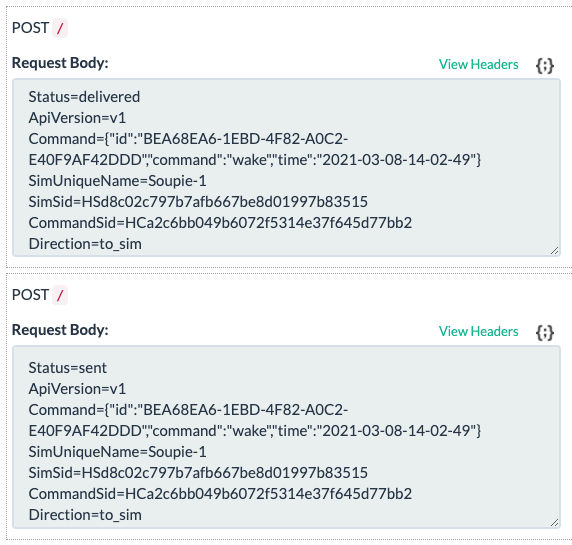
This time, you'll receive a series of notification messages as the SMS Command's status moves from `queued` to `sent` to `delivered`:
***
## Next steps
You've set up a SImcom 7600G cellular modem to send and receive M2M SMS messages, and you've sent messages to the device and back again, all through KORE Super SIM's SMS Commands API. You've also used the API's webhook mechanism to keep track of Command delivery.
The next stage, of course, is to build a device-side app that listens for commands, parses them, and triggers actions accordingly. You may also want to create a server app that's able to request information from devices: it sends a request command which causes the device to send a second, data-bearing message back. Or you might code up a mobile app that uses SMS Commands to control the device remotely.
We can't wait to see what you build with Super SIM SMS Commands!
---
# Agent Instructions
This documentation is published with GitBook. GitBook is the documentation platform designed so that both humans and AI agents can read, navigate, and reason over technical content effectively. Learn more at gitbook.com.
## Querying This Documentation
If you need additional information that is not directly available in this page, you can query the documentation dynamically by asking a question.
Perform an HTTP GET request on the current page URL with the `ask` query parameter, and the optional `goal` query parameter:
```
GET https://docs.korewireless.com/supersim/supersim-first-steps/get-started-with-super-sim-sms-commands-and-the-raspberry-pi-4.md?ask=&goal=
```
`ask` is the immediate question: it should be specific, self-contained, and written in natural language.
`goal` is optional and describes the broader end goal you are ultimately trying to accomplish on behalf of the user. GitBook uses it to tailor the answer towards what is most useful for that goal.
The response will contain a direct answer to the question and relevant excerpts and sources from the documentation.
Use this mechanism when the answer is not explicitly present in the current page, you need clarification or additional context, or you want to retrieve related documentation sections.