> For the complete documentation index, see [llms.txt](https://docs.korewireless.com/llms.txt). Markdown versions of documentation pages are available by appending `.md` to page URLs; this page is available as [Markdown](https://docs.korewireless.com/kore/supersim/supersim-first-steps/get-started-with-super-sim-the-raspberry-pi-4-and-the-waveshare-4g-hat.md).
# Get Started with Super SIM, the Raspberry Pi 4 and the Waveshare 4G Hat
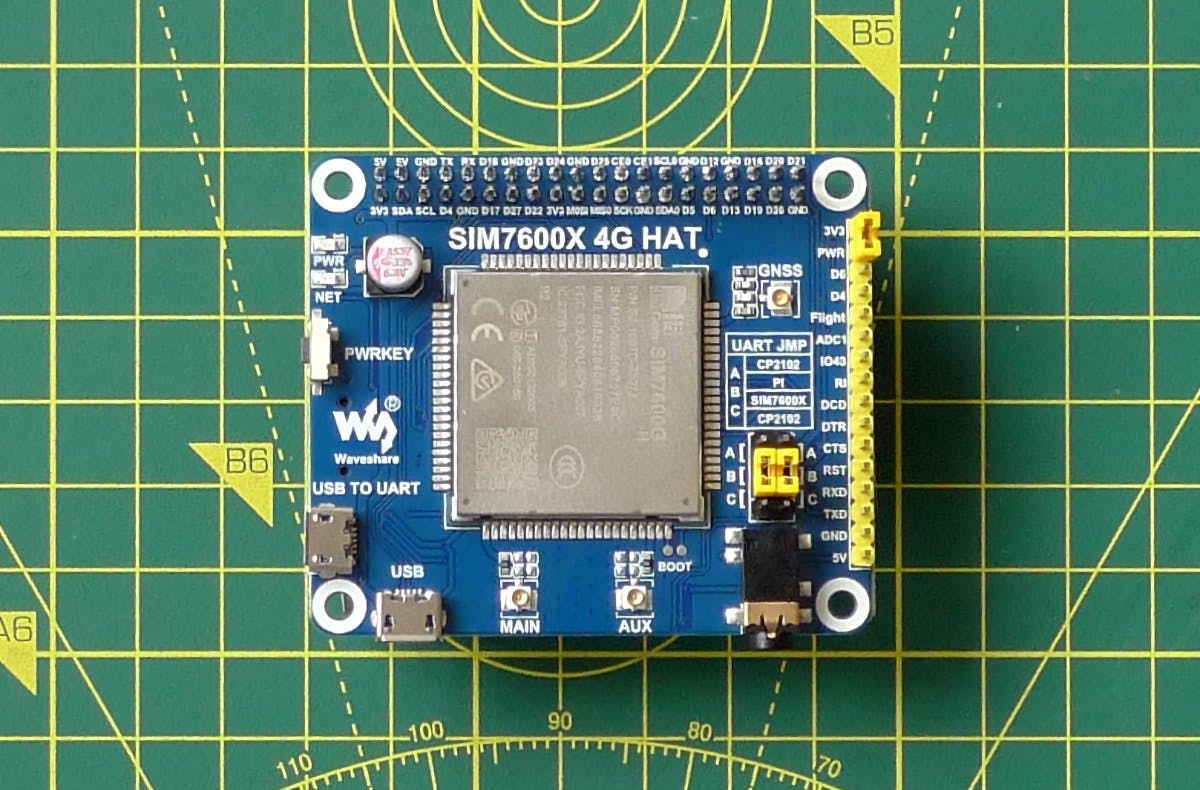
[Super SIM](https://docs.korewireless.com/en-us/supersim) can empower a huge range of IoT devices. This guide focuses on just one of them: [Waveshare's SIM7600G-H 4G Hat](https://www.waveshare.com/wiki/SIM7600G-H_4G_HAT), a development board which equips a low-cost Raspberry Pi computer with a Simcom 7600G-H cellular modem.
{% hint style="info" %}
This guide requires a **configured** [Super SIM](https://docs.korewireless.com/en-us/supersim). If you haven't set up your Super SIM in the [Console](https://supersim.korewireless.com/supersim/sims), please do so now. The [Super SIM First Steps guide](https://docs.korewireless.com/en-us/supersim/get-started/supersim-first-steps) has help if you need it.
{% endhint %}
***
## The hardware
In addition to your [configured Super SIM](https://docs.korewireless.com/en-us/supersim/get-started/supersim-first-steps), you will need the following hardware to proceed with this guide:
* A Waveshare [SIM7600G-H 4G HAT](https://www.waveshare.com/wiki/SIM7600G-H_4G_HAT) . This is the global version; there are [variants](https://www.waveshare.com/wiki/Main_Page#Wireless_Communication) that target specific territories.
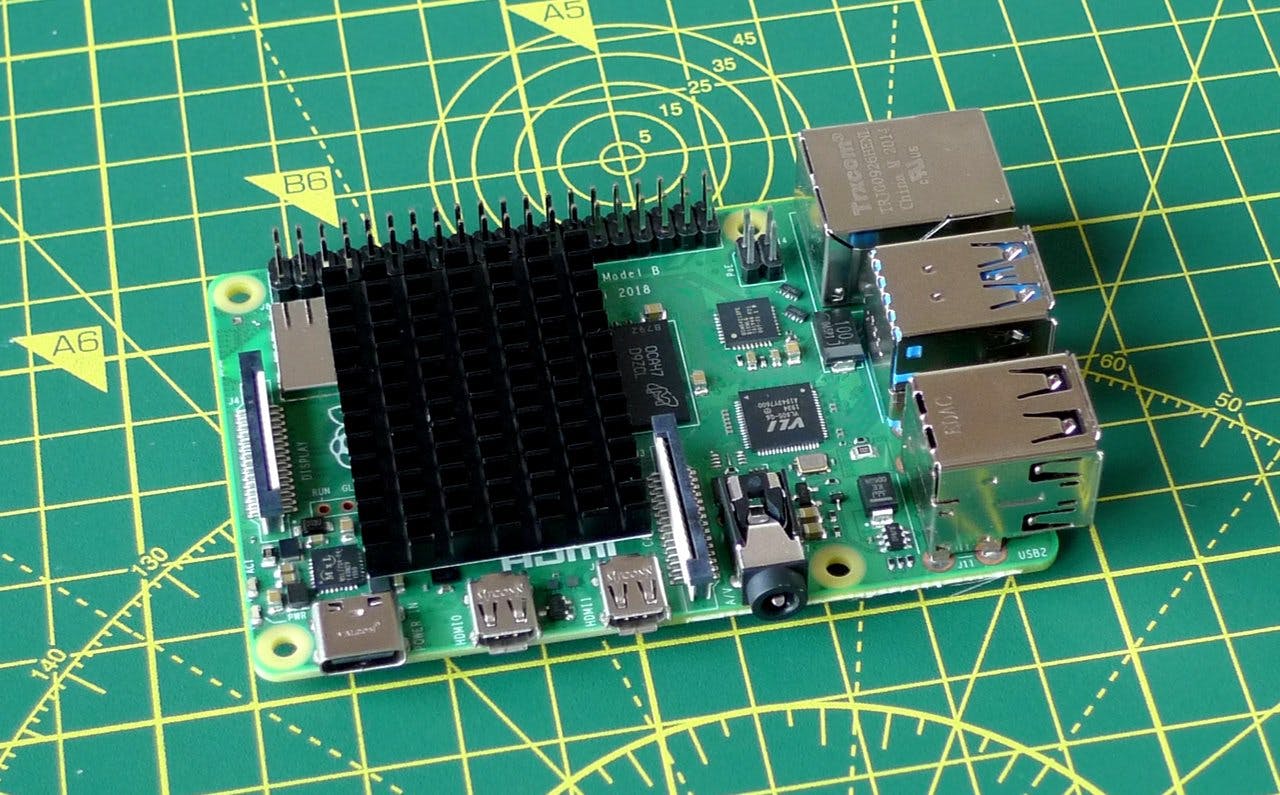
* A [Raspberry Pi](https://www.raspberrypi.org/products/raspberry-pi-4-model-b/). This guide was written using the Pi 4 Model B, but there are other versions of the Pi available — it should work with any of them, but we've only tested the 4. The SIM7600G-H 4G Hat works with all but the very first Pi. To run the Pi, you will also need:
* A Micro SD card of 8GB or above.
* A monitor and an HDMI-to-micro-HDMI cable.
* A keyboard and a mouse
* A 5V, 2A (10W) USB-C AC adaptor.
### Hardware setup: the Raspberry Pi
The Raspberry Pi has its own setup procedure which involves downloading and installing its Linux operating system, called Raspberry Pi OS, onto the Micro SD card. The Raspberry Pi Foundation has [a very good walkthrough](https://projects.raspberrypi.org/en/projects/raspberry-pi-setting-up) of its own that covers this process — you should use this to get your Pi ready before proceeding to the next stage of this guide.
{% hint style="info" %}
During setup you should connect your Pi 4 to your WiFi network as you will need to download extra software later. We'll disable WiFi in due course to demonstrate data access over cellular.
{% endhint %}
### Hardware setup: the SIM7600G-H 4G Hat
The SIM7600G-H 4G Hat ships with all you need to fit it onto the Pi. Just follow these steps to set everything up:
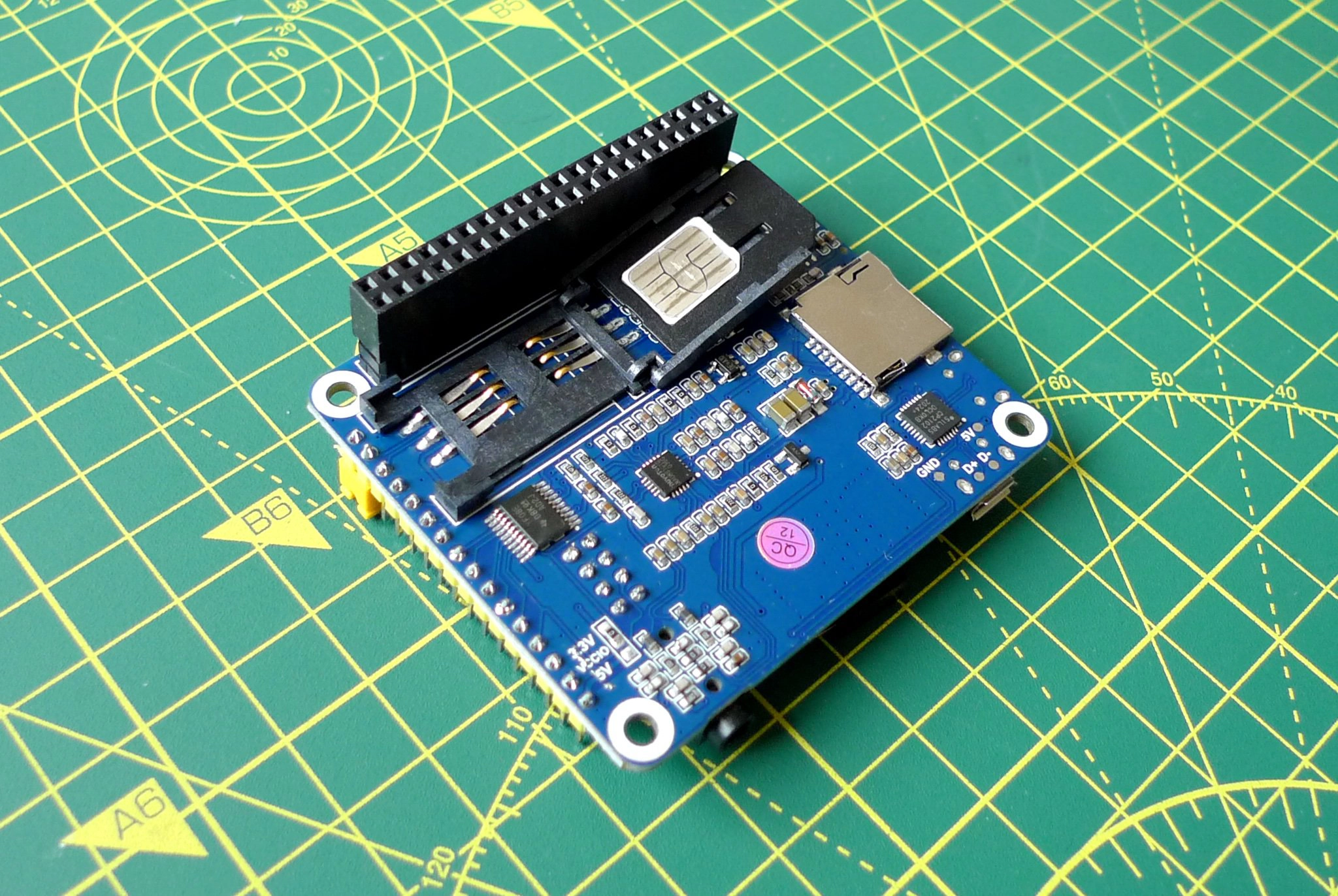
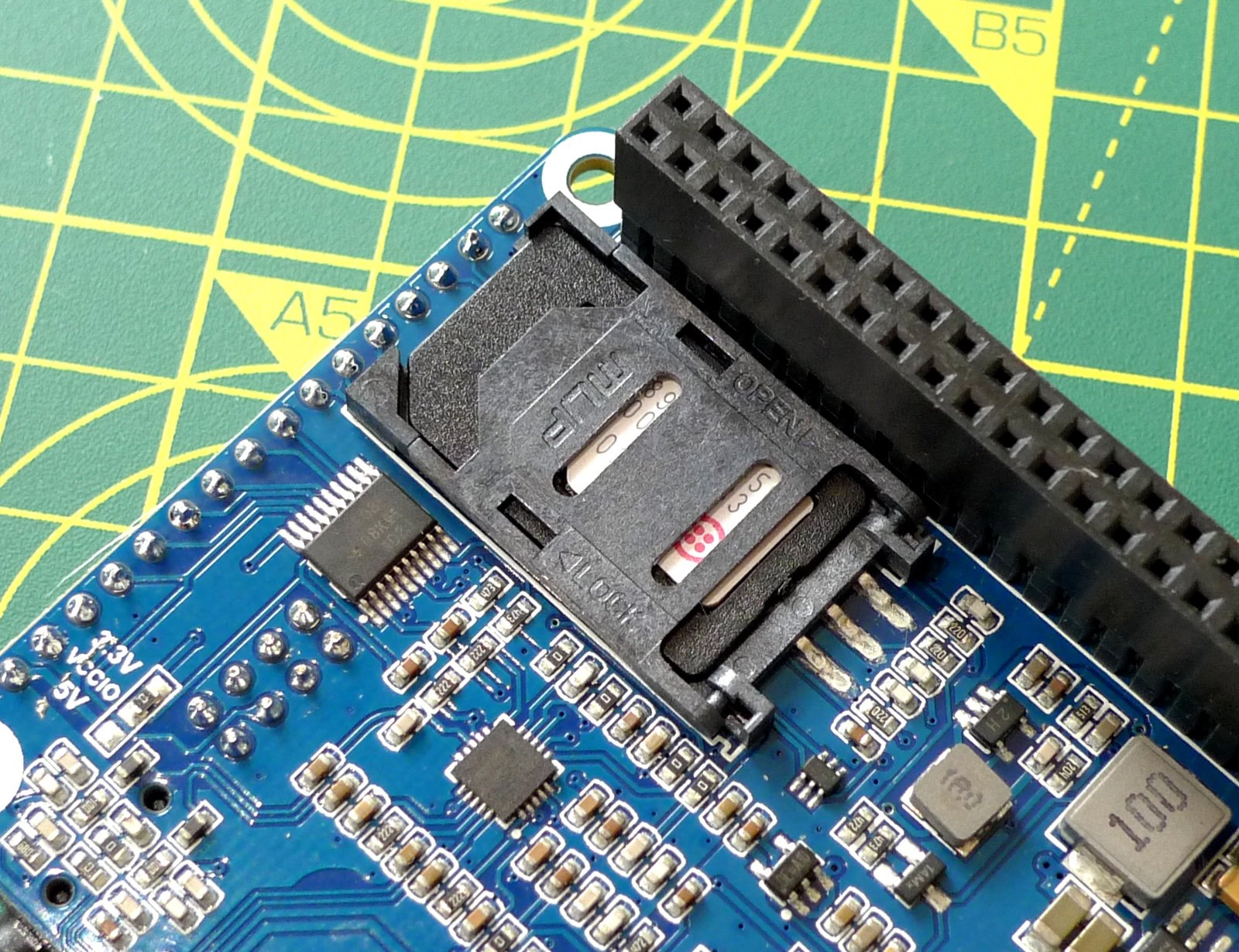
1. Fit your Super SIM into the SIM7600G-H 4G Hat's SIM retainer. This takes a full-size SIM, so take care removing your Super SIM from its mount, or use an adapter if you have removed the Super SIM as a 4FF Nano SIM:
Lock the SIM retainer in place to keep the Super SIM secure:
2. If it's powered up, turn off the Pi.
* If you're at the command line, enter `sudo shutdown -h` now.
* If you're at the desktop, select **Shutdown…** from the **Raspberry** menu and then click **Shutdown** .
* Remove the power cable when the Pi's activity LED has flashed ten times.
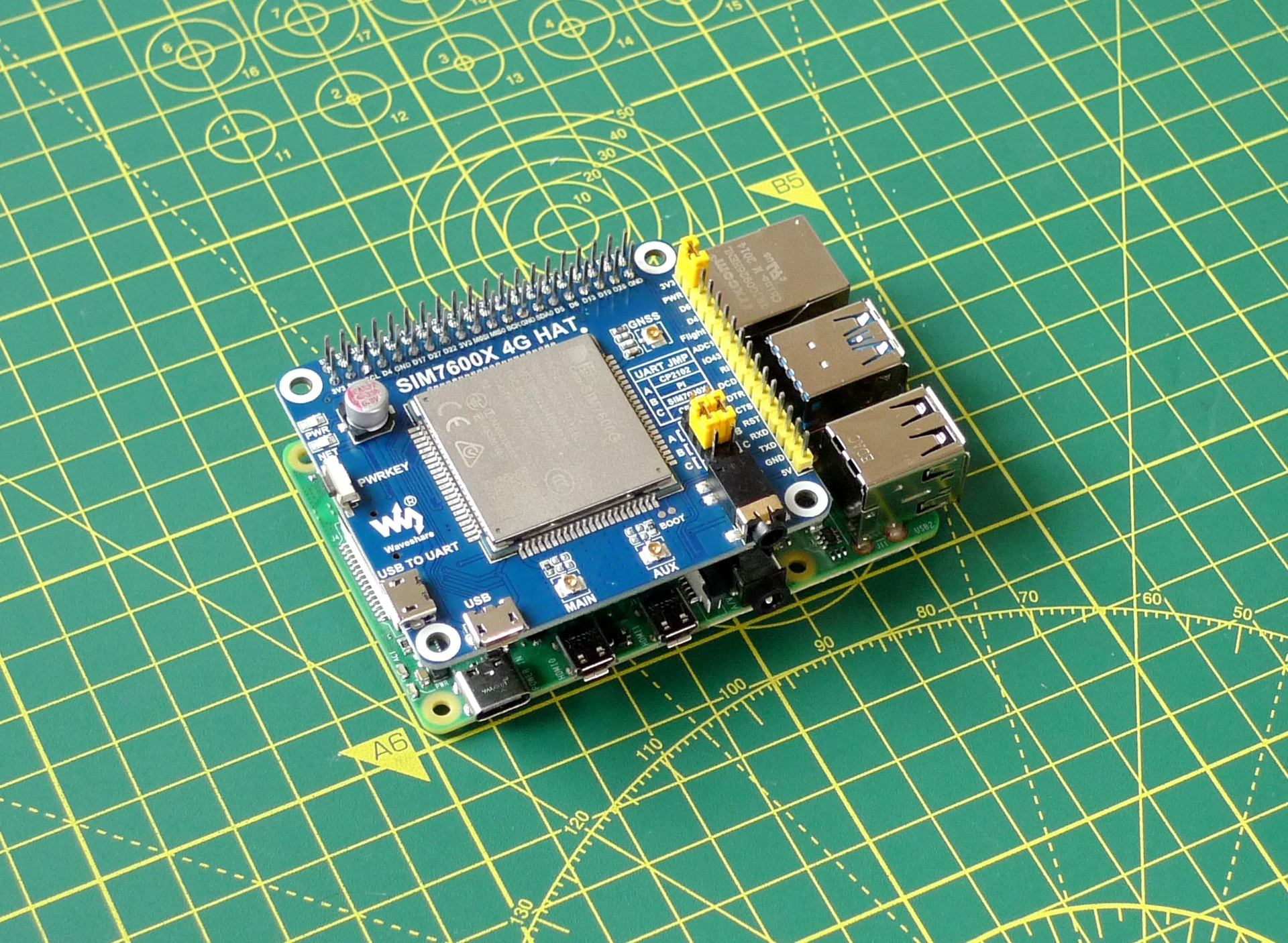
3. Slot the SIM7600G-H 4G Hat onto the Pi's GPIO header:
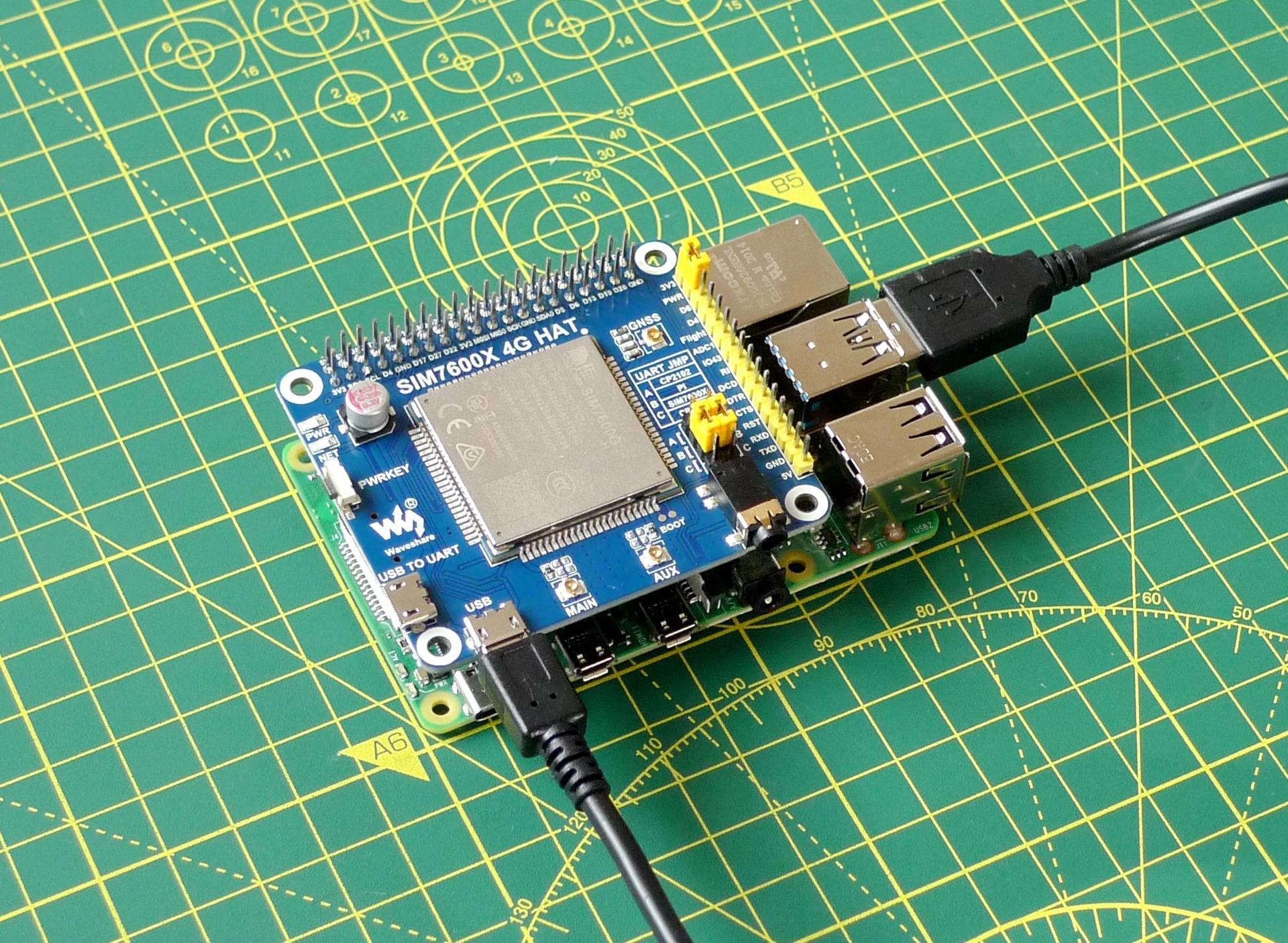
4. Connect the supplied USB cable to the micro USB port marked just **USB** on the SIM7600G-H 4G Hat and a USB port on the Pi:
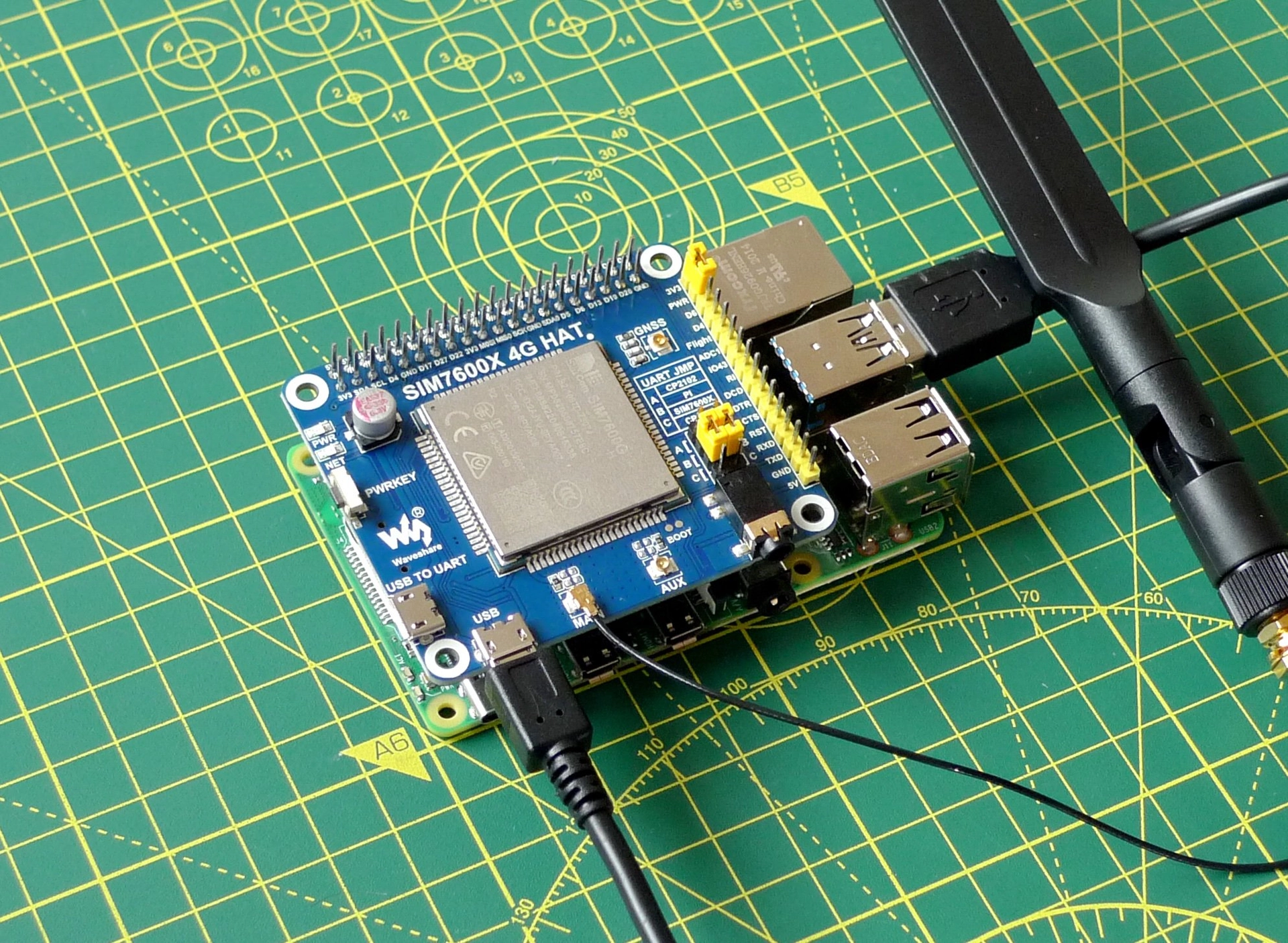
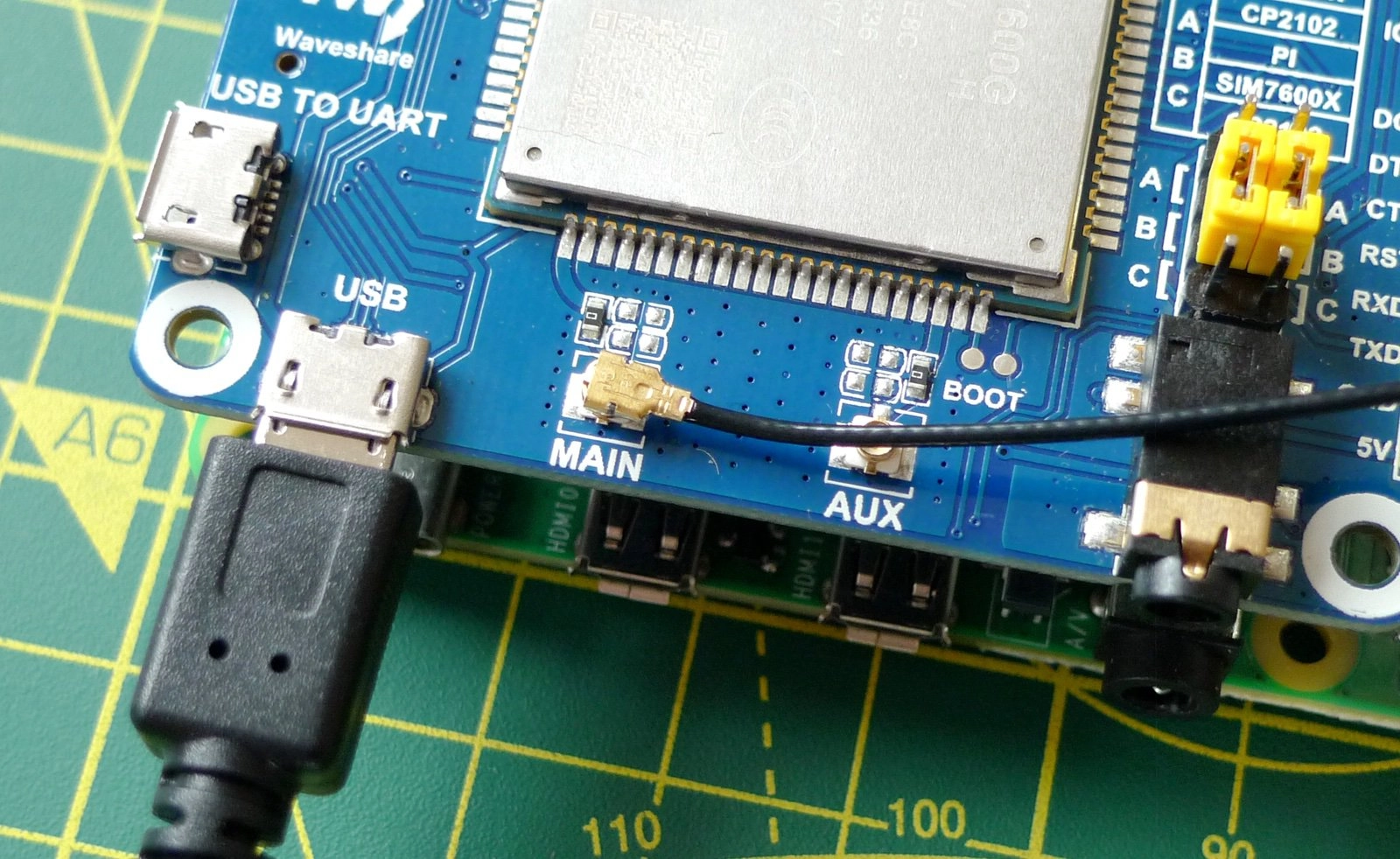
5. Assemble and connect the bundled cellular antenna to the SIM7600G-H 4G Hat. Connect it to the LTE connector marked **MAIN** on the board:
Here's a close-up:
6. Finally, power up the Pi by re-inserting the power cable.
***
## Software setup
We now need to run through a few steps to get the Pi ready to talk to the SIM7600G-H 4G Hat. Some of these will require you to restart the Pi.
### 1. Configure Pi serial port access
1. If you're at the Raspberry Pi desktop, select **Accessories > Terminal** from the **Raspberry** menu.
2. Run `sudo raspi-config` .
3. Use the cursor keys to highlight **Interfacing Options**, then hit **Enter**:
4. Now highlight **Serial Port** and hit **Enter**:
5. When you are asked **Would you like a login shell to be accessible over serial?** select **No** and hit **Enter**:
6. When you are asked **Would you like the serial port hardware to be enabled?** select **Yes** and hit **Enter**:
7. Select **Finish** .
8. The `raspi-config` utility will offer to restart the Pi — accept its suggestion.
### 2. Power up the Hat
When the Pi is back up, you should see that the SIM7600G-H 4G Hat's **PWR** LED is lit. Now press the **PWRKEY** button on the board — after a brief moment, the **NET** LED should light up.
At the command line or in a desktop Terminal run:
```bash
ls /dev/ttyUSB*
```
You should see a list of items all beginning with `ttyUSB` and including `ttyUSB2`, which is the device you'll use in subsequent steps. If you don't see a list of TTYs, first check that the SIM7600G-H 4G Hat's **PWR** and **NET** LEDs are lit. Make sure your USB cable is not connected to **USB TO UART** on the Hat.
### 3. Attach to a cellular network
The SIM7600G-H 4G Hat can be controlled using [AT commands](https://docs.korewireless.com/en-us/supersim/cellular-module-knowledgebase/about-at-commands) issued through a command-line serial console tool which communicates with the Hat's cellular module. We'll use Minicom here, but if you prefer to use an alternative tool, such as Screen, that's fine. At the command line or in a desktop Terminal run:
```bash
sudo apt update
sudo apt install minicom -y
```
Enter `minicom -D /dev/ttyUSB2` to open a connection to the modem. If Minicom posts an error indicating that `/dev/ttyUSB2` is inaccessible, please [check your SIM7600G-H 4G Hat setup](#hardware-setup-the-sim7600g-h-4g-hat).
{% hint style="info" %}
The SIM7600G-H may not be set to echo back what you type in, so you won't be able to see your side of the conversation. Type in `ATE1` and hit **Enter** . You'll get an `OK` back, and when you follow the remaining steps you'll see what you type!
{% endhint %}
Just hit **Enter** after keying in each of the following commands. Wait for the modem to respond before moving on to the next command.
```bash
AT+CGDCONT=1,"IP","super"
AT+COPS?
```
You should see something like `+COPS: 0,0,"Vodafone UK Twilio",7` which tells you which network you're connecting through. You should also see the Hat's **NET** light flashing.
### 4. Connect to the Internet
Now you know you have a cellular connection, you can connect to the Internet. You need to install the PPP (Point-to-Point Protocol) software the PI will use to establish the connection, and to configure it. First run the following commands at the command line:
```bash
sudo apt install ppp -y
sudo cp /etc/ppp/peers/provider /etc/ppp/peers/provider.bak
sudo nano /etc/ppp/peers/provider
```
The last of these commands opens the primary configuration file in a text editor so you can make the required changes. Make sure the file contains the following lines. Some may be missing, others may be present depending on the version of `ppp` you've installed:
```bash
nocrtscts
debug
nodetach
ipcp-accept-local
ipcp-accept-remote
```
In the same file, look for lines like these and update them so they match what's shown here:
```bash
connect '/usr/sbin/chat -s -v -f /etc/chatscripts/gprs -T super'
/dev/ttyUSB2
```
The last line above is [the value you determined earlier](#id-2-power-up-the-hat).
To initiate an Internet connection, at the command line or in a desktop terminal run:
```bash
sudo pon
```
You'll see a stack of lines displayed at the command line.
Meantime, open a fresh terminal and enter:
```bash
sudo route add -net "0.0.0.0" ppp0
```
When the prompt is back, you're ready to try out the Internet connection:
* If you're at the desktop, select **Turn off Wireless LAN** from the network menu at the top right.
* If you're at the command line, run `sudo ifconfig wlan0 down` .
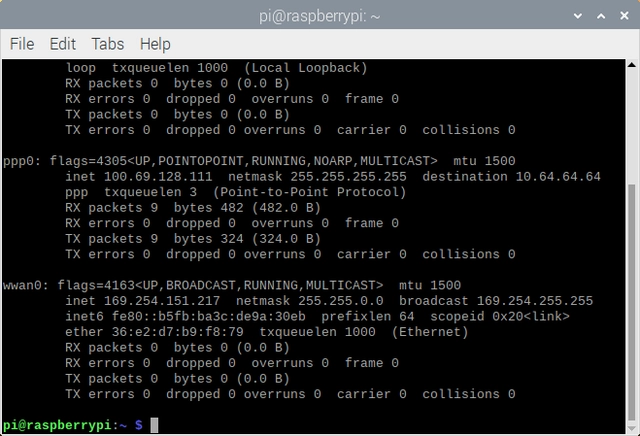
* At the command line or in a desktop terminal, enter `ifconfig` and look for the `ppp0` entry — it should have a valid IP address listed under `inet`:
* Open up a browser and navigate to [**korewireless.com**](https://www.korewireless.com/):
Well done! You now have a Raspberry Pi computer that's connected to the Internet via Super SIM. You can now start experimenting with cellular Internet connectivity, or begin developing your own IoT application proof-of-concept.
***
## Next steps
Your Raspberry Pi and Waveshare SIM7600G-H 4G Hat are now able to access the cellular network. Over to you: what are you going to build? We can't wait to find out.
In the meantime, here are some suggestions for things to try:
* Write some code to get data from a cloud service API via cellular. Here's a good selection of [public APIs](https://github.com/public-apis/public-apis) .
* Use the [Console](https://supersim.korewireless.com/supersim/sims) or [Super SIM API](https://docs.korewireless.com/en-us/api/products/supersim/usage-record-resource) to monitor your Super SIM's data usage.
* Check out our guide Introduction to [AT commands](https://docs.korewireless.com/en-us/supersim/cellular-module-knowledgebase/about-at-commands) and try sending to your modem some of the more useful commands it lists.
---
# Agent Instructions
This documentation is published with GitBook. GitBook is the documentation platform designed so that both humans and AI agents can read, navigate, and reason over technical content effectively. Learn more at gitbook.com.
## Querying This Documentation
If you need additional information that is not directly available in this page, you can query the documentation by asking a question.
Perform an HTTP GET request on the following URL with the `ask` and `goal` query parameters:
```
GET https://docs.korewireless.com/kore/supersim/supersim-first-steps/get-started-with-super-sim-the-raspberry-pi-4-and-the-waveshare-4g-hat.md?ask=&goal=
```
`ask` is the immediate question: it should be specific, self-contained, and written in natural language.
`goal` is what the user is ultimately trying to achieve, the reason they need the answer. Sharing it helps GitBook give you a better, more relevant answer. A goal is most helpful when it describes the outcome the user wants rather than restating the question. For example, with `ask=how do I create an API token`, a goal like `automate deployments from our CI pipeline` lets GitBook tailor the answer to that use case.
The response will contain a direct answer to the question and relevant excerpts and sources from the documentation.
Use this mechanism when the answer is not explicitly present in the current page, you need clarification or additional context, or you want to retrieve related documentation sections.