> For the complete documentation index, see [llms.txt](https://docs.korewireless.com/llms.txt). Markdown versions of documentation pages are available by appending `.md` to page URLs; this page is available as [Markdown](https://docs.korewireless.com/kore/supersim/how-to/how-to-set-up-and-use-a-super-sim-vpn.md).
# How to Set Up and Use a Super SIM VPN
Super SIM VPN (Virtual Private Network) establishes a secure private network between KORE and your application data center, and ensures your Super SIM-connected devices use this private network for data communications.
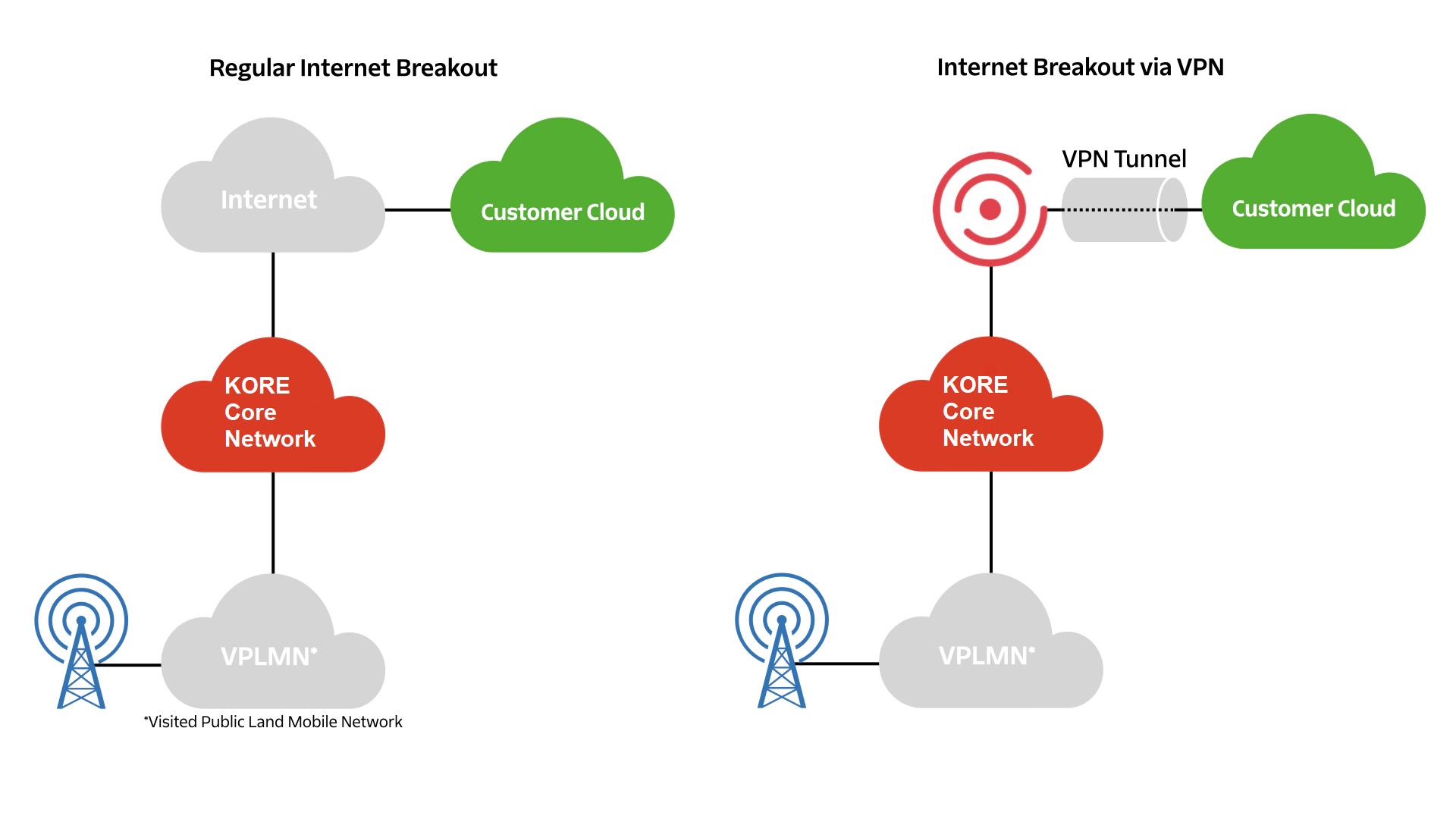
With a regular Internet breakout, the traffic from Super SIM-connected devices will go over the Internet and get routed to your application data center. When a VPN is used, the same traffic is sent over a secure and private tunnel as shown below:
With a VPN, you get these benefits:
* A secure channel — The traffic moving between KORE and your cloud is strongly encrypted.
* A private end-to-end network — Your IoT devices will appear as an extension of your private application cloud.
* Extended session duration — When an IoT device's traffic goes through a VPN, there are no NAT or Firewall timers to mitigate.
* A static private IP address for each device — You can reach the device at a known address from your application cloud.
## Do I need a VPN?
Most IoT use cases don't require a VPN, and you shouldn't opt for one if your application won't benefit from it. This is because setting up and maintaining a VPN connection involves increased complexity, and it comes at an additional monthly cost. Please review your use case with your IoT specialist at KORE to determine if it warrants a VPN connection.
For example, if your use case requires sending a message from your cloud to your device,[ IP Commands](/kore/api/products/supersim/ipcommand-resource.md) is a simple alternative to Super SIM VPN. Using IP Commands, you can send short IP/UDP messages from your application cloud to your Super SIM-enabled IoT devices without the device having to maintain a persistent connection to your cloud, having to use a VPN between your cloud and the cellular network, or requiring a static public IP address for each device. Take a look at our [Get Started with IP Commands](https://docs.korewireless.com/en-us/supersim/get-started/get-started-with-super-sim-ip-commands-and-the-raspberry-pi) guide to try out this feature.
If you do decide that your application needs a Super SIM VPN, this guide will show you how to set it up and use it.
## VPN compatibility and requirements
You can use whichever VPN gateway product you prefer, but it must be compliant with the well-established [IKE v1 and v2](https://en.wikipedia.org/wiki/Internet_Key_Exchange), and [IPSec](https://en.wikipedia.org/wiki/IPsec) standards.
Your peer IP needs to be static.
## Set up your VPN connection
The first step is to [contact KORE](https://www.korewireless.com/contact-us) to request access to the VPN Program.
You will receive a VPN setup questionnaire which is used to collect essential setup information, including your VPN gateway details, your encryption domains (private IP subsets used in your data center), and your IKEv1/IKEv2 and IPsec details. The setup questionnaire also provides the information you will need about KORE's VPN gateway.
The answers you provide via the setup questionnaire are used to provision your VPN on KORE's VPN gateway. Each customer gets their own VPN connection.
Once your VPN connection is established on KORE's VPN gateway, a unique pre-shared key (PSK) is generated and shared with you via KORE Secure Data Transfer System.
You can then use the PSK, KORE's VPN gateway details from the setup questionnaire, and your own encryption domains to provision your VPN gateway and initiate a VPN connection. If the gateway provisioning is performed correctly, the VPN connection will come up straight away. If this does not occur, KORE will help you find and fix any issues.
{% hint style="warning" %}
KORE will provide the range to allocate static private IP addresses for your devices. Please make sure you are not using this range for the subnets in your application cloud behind your VPN gateway. If your IoT device acts like a router and provides connectivity to other devices attached to it, please make sure you don't use the range in that subnet.
{% endhint %}
## Enable VPN for your devices
{% hint style="warning" %}
This section walks you through using your Super SIM VPN connection once setup is complete. You must be logged in to the Super SIM console. For more information about Super SIM VPN or to gain access, contact your IoT sales specialist or [KORE](https://www.korewireless.com/contact-us/).
{% endhint %}
Once the VPN connection has been established and you have received the VPN SID from KORE, complete the following steps.
1. Sign in to [KORE One](https://one.korewireless.com/dashboard) and navigate to Super SIM.
2. From the left menu, select **Fleets**.
3. Choose **Create Fleet**.
1. Enter a unique name for the fleet.
2. Choose a **Network Access Profile** from the drop-down.
3. Enter the VPN Connection SID, shared by KORE, to associate the fleet with the VPN.
4. Select **Create**. A confirmation message appears when the fleet is created successfully.
4. Select **SIMs** from the left menu. Existing SIMs appear on the page. Each SIM is associated with a device.
1. Select the SIMs you want to use with the VPN and choose **Update** above the SIMs grid. The following pop-up opens.
2. In the pop-up, select the fleet you created and choose **Continue**. Your devices are now assigned to the VPN.
5. Wait a few minutes for KORE One to apply the changes. A message will appear while the changes are being processed.
After processing completes:
* Check the VPN status of your devices.
* Confirm that the devices can connect through the VPN.
* If issues occur, review fleet assignment, VPN profile, and configuration details.
## Use the VPN
Any SIMs you assign to a VPN-enabled Fleet will automatically start using the Fleet's VPN connection. There is nothing more to do. When the VPN is being used, your devices can reach the application servers in your data center and vice versa through the secure VPN connection.
## Get a device's IP address
Every SIM in a VPN-enabled Fleet is assigned its own private static IPv4 address. This address is assigned to the Super SIM when it first attaches — it is the actual IP address used by SIM's host device. After the initial assignment, the IP address persists within the SIM, and your device will be assigned the same address provided that it is using the same SIM and that the SIM remains assigned to the VPN-enabled Fleet.
You can initiate sessions — SSH, browser-based HTTPS, ping, etc. — from your data center to the device using the corresponding static IP address.
There are three ways to retrieve a device's static IP address.
### 1. Super SIM console
The IP address assigned to a SIM is listed in the Super SIM console on [the SIM's details page](https://supersim.korewireless.com/supersim/sims):
### 2. The IpAddresses subresource API
The IpAddresses subresource is used to fetch the IP address assigned to a SIM. You will need the SID of the [Sim resource](/kore/api/products/supersim/sim-resource.md) that represents the SIM you are interested in. Here is a sample API call:
{% code overflow="wrap" %}
```bash
curl -X GET https://supersim.api.korewireless.com/v1/Sims/HSxxxxxxxxxxxxxxxxxxxxxxxxxxxx/IpAddresses \
-H "Authorization: Bearer " \
-s |jq
```
{% endcode %}
This will output a JSON object containing an `ip_addresses` object:
```json
{
"ip_addresses": [
{
"ip_address": "8.8.8.8",
"ip_address_version": "IPv4"
}
]
}
```
If the SIM is not assigned to a VPN-enabled Fleet, the value of `ip_addresses` will be `null`.
For more information on using this API, please see the IpAddresses subsresource documentation.
### 3. Connection Events Stream
If you are already subscribed to Super SIM Connection Events, you will get the static IP address assigned to your SIM as part of the "Data Session Started" event. There is no need to use either of the previous two methods to obtain the IP address assigned to the SIM.
To learn more about Super SIM Connection Events, please see **Get Started with Super SIM Connection Events**.
### 4. Update your devices' APN settings
VPN usage currently requires that devices use either of the APNs `super` or `us1.super` in place of all other Super SIM APNs. If you are using the regional breakout APNs, please update your devices to use `super` or `us1.super` to access VPNs.
For more details on setting APNs, please see [**How to Set a Device's APN for Super SIM**](/kore/supersim/how-to/apn-configuration.md).
---
# Agent Instructions
This documentation is published with GitBook. GitBook is the documentation platform designed so that both humans and AI agents can read, navigate, and reason over technical content effectively. Learn more at gitbook.com.
## Querying This Documentation
If you need additional information that is not directly available in this page, you can query the documentation by asking a question.
Perform an HTTP GET request on the following URL with the `ask` and `goal` query parameters:
```
GET https://docs.korewireless.com/kore/supersim/how-to/how-to-set-up-and-use-a-super-sim-vpn.md?ask=&goal=
```
`ask` is the immediate question: it should be specific, self-contained, and written in natural language.
`goal` is what the user is ultimately trying to achieve, the reason they need the answer. Sharing it helps GitBook give you a better, more relevant answer. A goal is most helpful when it describes the outcome the user wants rather than restating the question. For example, with `ask=how do I create an API token`, a goal like `automate deployments from our CI pipeline` lets GitBook tailor the answer to that use case.
The response will contain a direct answer to the question and relevant excerpts and sources from the documentation.
Use this mechanism when the answer is not explicitly present in the current page, you need clarification or additional context, or you want to retrieve related documentation sections.