> For the complete documentation index, see [llms.txt](https://docs.korewireless.com/llms.txt). Markdown versions of documentation pages are available by appending `.md` to page URLs; this page is available as [Markdown](https://docs.korewireless.com/kore/programmable-wireless/get-started/get-started-with-programmable-wireless-machine-to-machine-sms-commands.md).
# Get Started with Programmable Wireless Machine-to-Machine SMS Commands
You've got a Programmable Wireless SIM in your device and you want to start sending machine-to-machine (M2M) SMS messages. You do so using the Programmable Wireless Commands API. This short guide will show you how.
***
### How are Commands different from Programmable SMS?
Programmable SMS is used to exchange text messages between people. Commands use SMS as the means to deliver messages between machines.
You use [Command resources](https://docs.korewireless.com/en-us/api/products/programmable-wireless/command-resource) to send a command message to a Programmable Wireless SIM, not to a person's phone number. Commands also provide some features, such as binary message encoding, that are only useful for M2M workflows.
{% hint style="info" %}
You can get all the details you need to use [Command resources](https://docs.korewireless.com/en-us/api/products/programmable-wireless/command-resource) in [the Programmable Wireless API documentation](https://docs.korewireless.com/en-us/api/products/programmable-wireless).
{% endhint %}
{% hint style="warning" %}
This guide is intended for the Programmable Wireless SIM. It is not intended for the Narrowband SIM, which does not support messaging, only data services.
{% endhint %}
### Send a Command from your device
Let's say you want to send a Command from your device to KORE's servers to either:
* Test Commands themselves.
* Hit the [Commands callback webhook](https://docs.korewireless.com/en-us/api/products/programmable-wireless/command-resource#callback-values) to check that your server is notified when Commands are transmitted.
How you send a Command is largely dependent on the type of device you use to send it. Generally, you need to do the following:
1. Insert a Programmable Wireless SIM in the device.
2. Make sure the SIM has been registered to your account and is in the `Ready` or `Active` [state](/kore/programmable-wireless/help-and-support/about-sim-states.md) .
3. Send an SMS to the short code 2936.
#### What is this 2936 number?
2936 is a special reserved short code used solely to exchange Commands with your Programmable Wireless SIMs. KORE uses a given SIM's unique identifier to route Commands sent to 2936 through your account.
#### Verify that the target machine received the Command
* Navigate to the [**SIMs**](https://programmable-wireless.korewireless.com/wireless/sims) section of the Console.
* At the list of SIMs on your account, click on the SIM that is in your device .
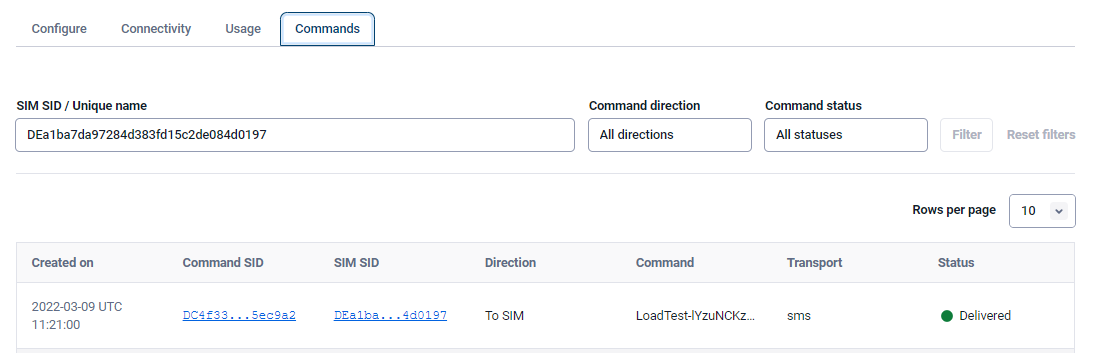
* Click on the **Commands** tab at the top of the SIM details.
* You should see your first Command sent from a machine to a machine:
#### Relay messages to your cloud
The Console page showing your SIM's configuration — select **Configure** if you're still on the **Commands** tab — has a section called **Commands** with a **Commands Callback URL** field. This is where you enter the address of an endpoint in your cloud that will receive Commands send from the device.
If you don't have such an endpoint in place yet, you can use a service like [Beeceptor](https://beeceptor.com/) to try it out. Beeceptor offers free mock servers — virtual endpoints that can receive webhook calls. Let's set one up to receive messages from the device.
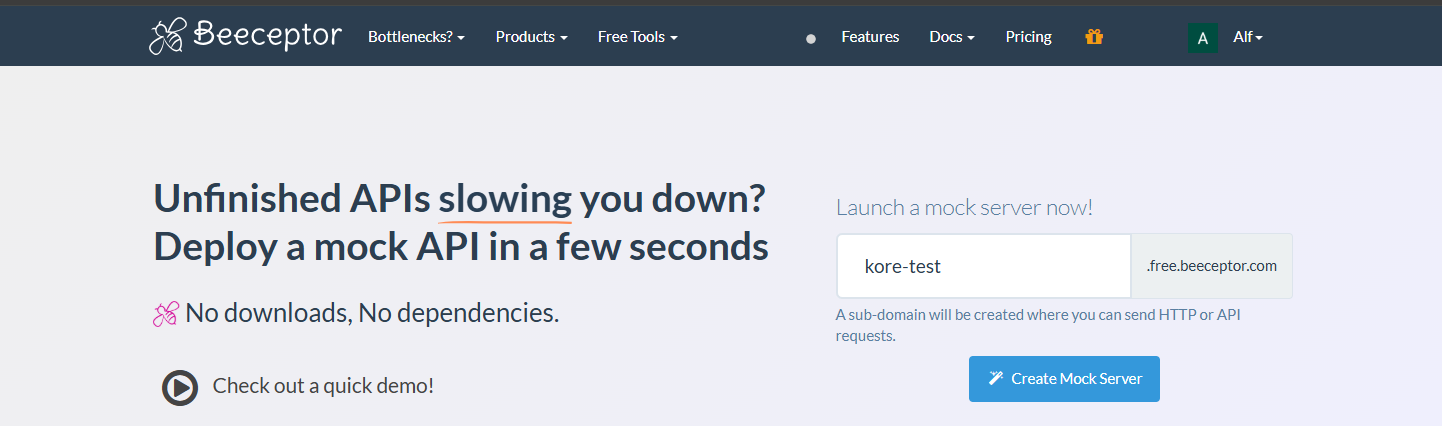
1. In a fresh web browser tab, go to [Beeceptor](https://beeceptor.com/):
2. Enter an endpoint name in the large text field and click **Create Endpoint** .
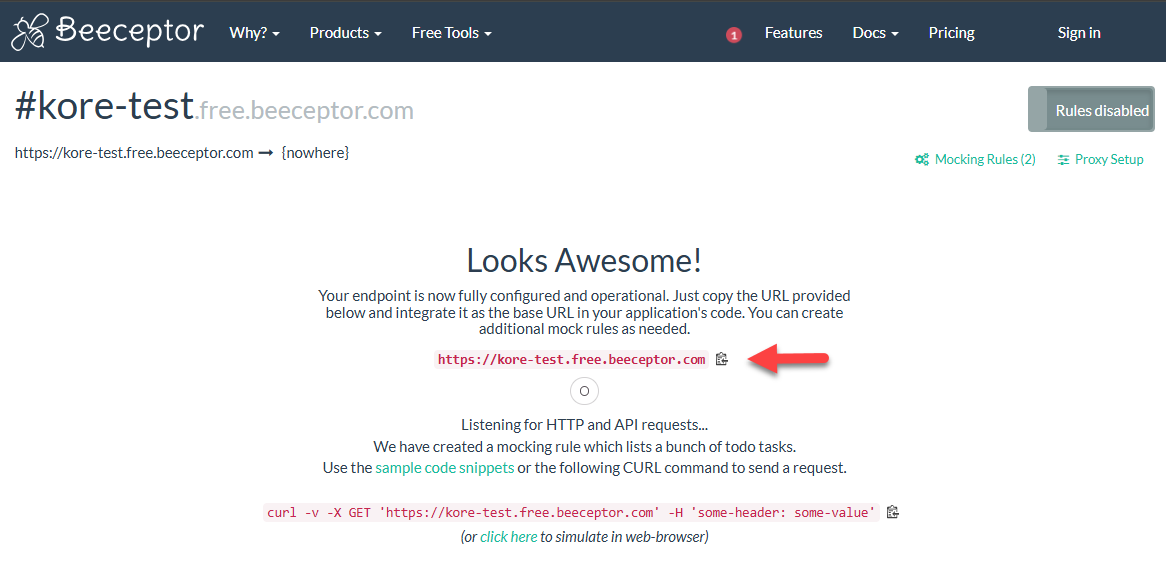
3. On the screen that appears next, click on the upper of the two **clipboard icons** to copy the endpoint URL:
4. Keep the tab open.
5. Go back to the web browser tab showing the KORE Console and paste the URL into the **Commands Callback URL** field.
6. Click **Save** .
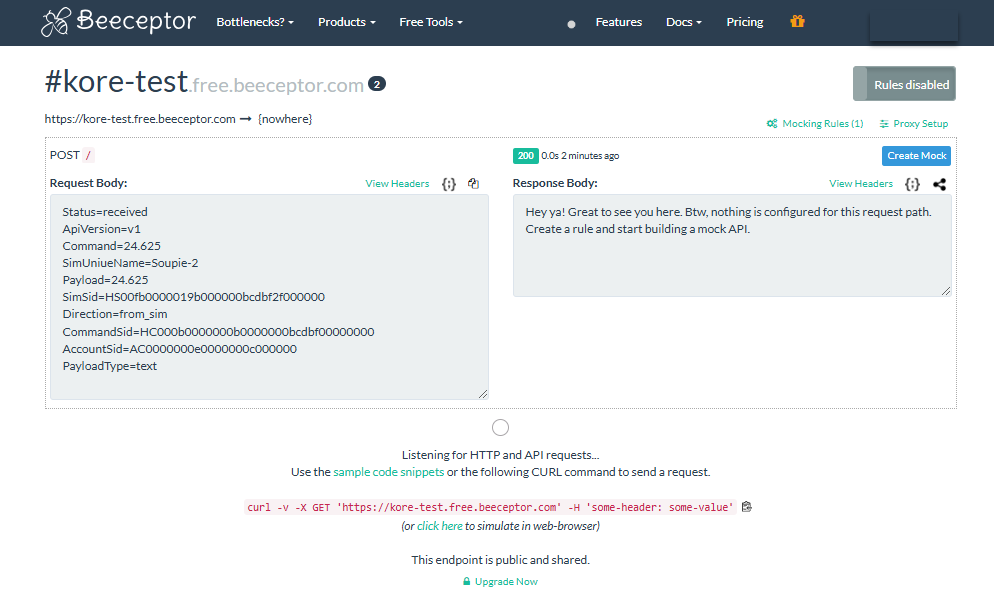
7. Now send a second Command from the device. This time it will be relayed to your Beeceptor endpoint and you can read it in the Beeceptor tab in your browser. You should see — or will shortly see — the endpoint has received a `POST` request:
8. Click on it to see the request body, then on the JSON icon, **{:}**, to view the data more clearly:
This is essentially how your IoT device will send Commands to your cloud. Here's the flow in this case:
* IoT device sends the command to KORE at 2936
* KORE `POST` s a request containing the Command to your cloud at the specified endpoint.
* Your cloud-side app extracts and processes the command.
***
### Send a Command to your device
You can send Commands from any Internet-connected device using the Programmable Wireless API. Typically the Command would come from your cloud.
You can do it right now on your computer. You'll need to use the command line tool *curl*, which you may need to install. If you are running Linux or macOS, *curl* is probably installed already: run `which curl` to check. For Windows, you will need to install *curl* — you can find the software and instructions from the source [here](https://curl.haxx.se/windows/).
You will also need the following KORE-specific credentials:
* Your Programmable Wireless SIM's SID or unique name. You can get this from the [**SIMs**](https://programmable-wireless.korewireless.com/wireless/sims) section of the Console.
* Your Authorization Token is available from your [console dashboard](https://build.korewireless.com) .
Copy the following code and paste it into a command line, then edit it to add your own credentials where marked. Make sure you remove the angle brackets. Windows users may need to remove the `\` symbols and run the command on a single line:
```bash
curl -X POST `https://programmable-wireless.api.korewireless.com/v1/Commands` \
--data-urlencode "Sim=" \
--data-urlencode "Command=hello_sim" \
--header "Content-Type: application/x-www-form-urlencoded" \
--header "Authorization: Bearer "
```
This code creates a Command resource in the KORE cloud which then triggers the transmission of the `Command` field's value to the specified SIM.
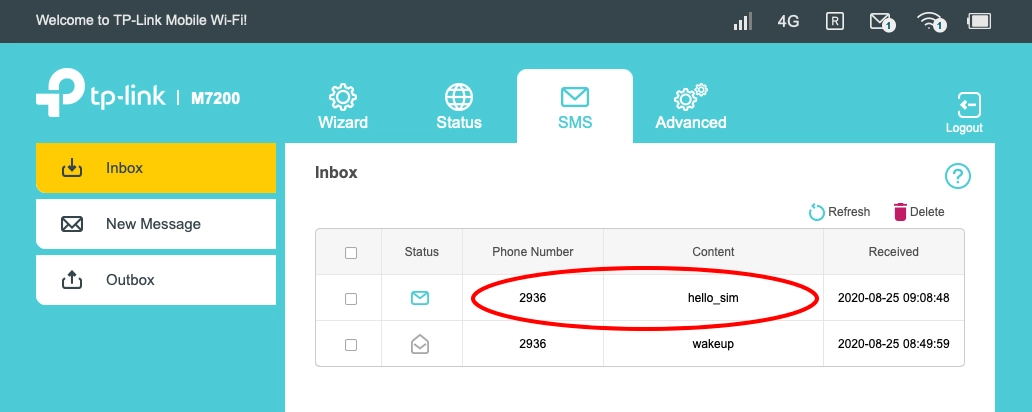
On your computer, you'll see the JSON results of the `POST` you sent to KORE via *curl*. Shortly, you'll receive the Command itself on your device from the 2936 number.
Again, you can verify that the Command was received by following the procedure described above, or you can check on the device itself if it has a suitable interface:
We've used a non-IoT device, of course, but it demonstrates how your cloud will send Commands to your IoT device. Here's the flow in this case:
* Your cloud-side app embeds the command in a request it sends to
```url
https://programmable-wireless.api.korewireless.com/v1/Commands
```
* KORE decodes the request, authorizes the access, and creates a Command resource.
* The Command resource sends the command itself to the IoT device as an SMS.
* Your IoT device's cellular module receives the command in SMS and your device-side application processes it.
### Need some help?
---
# Agent Instructions
This documentation is published with GitBook. GitBook is the documentation platform designed so that both humans and AI agents can read, navigate, and reason over technical content effectively. Learn more at gitbook.com.
## Querying This Documentation
If you need additional information that is not directly available in this page, you can query the documentation by asking a question.
Perform an HTTP GET request on the following URL with the `ask` and `goal` query parameters:
```
GET https://docs.korewireless.com/kore/programmable-wireless/get-started/get-started-with-programmable-wireless-machine-to-machine-sms-commands.md?ask=&goal=
```
`ask` is the immediate question: it should be specific, self-contained, and written in natural language.
`goal` is what the user is ultimately trying to achieve, the reason they need the answer. Sharing it helps GitBook give you a better, more relevant answer. A goal is most helpful when it describes the outcome the user wants rather than restating the question. For example, with `ask=how do I create an API token`, a goal like `automate deployments from our CI pipeline` lets GitBook tailor the answer to that use case.
The response will contain a direct answer to the question and relevant excerpts and sources from the documentation.
Use this mechanism when the answer is not explicitly present in the current page, you need clarification or additional context, or you want to retrieve related documentation sections.